
Hero and search
The hero holds your Headline, Subtitle and the search field. Hero background can be a soft tint of your brand color, plain, solid brand color, an image (ImagesHome hero image) or a muted background video (Background video, an MP4 link). The video stays still for visitors who ask their device to reduce motion.
Popular searches shows up to a few one-click searches under the field. The search suggests articles as visitors type (Zendesk's instant search).
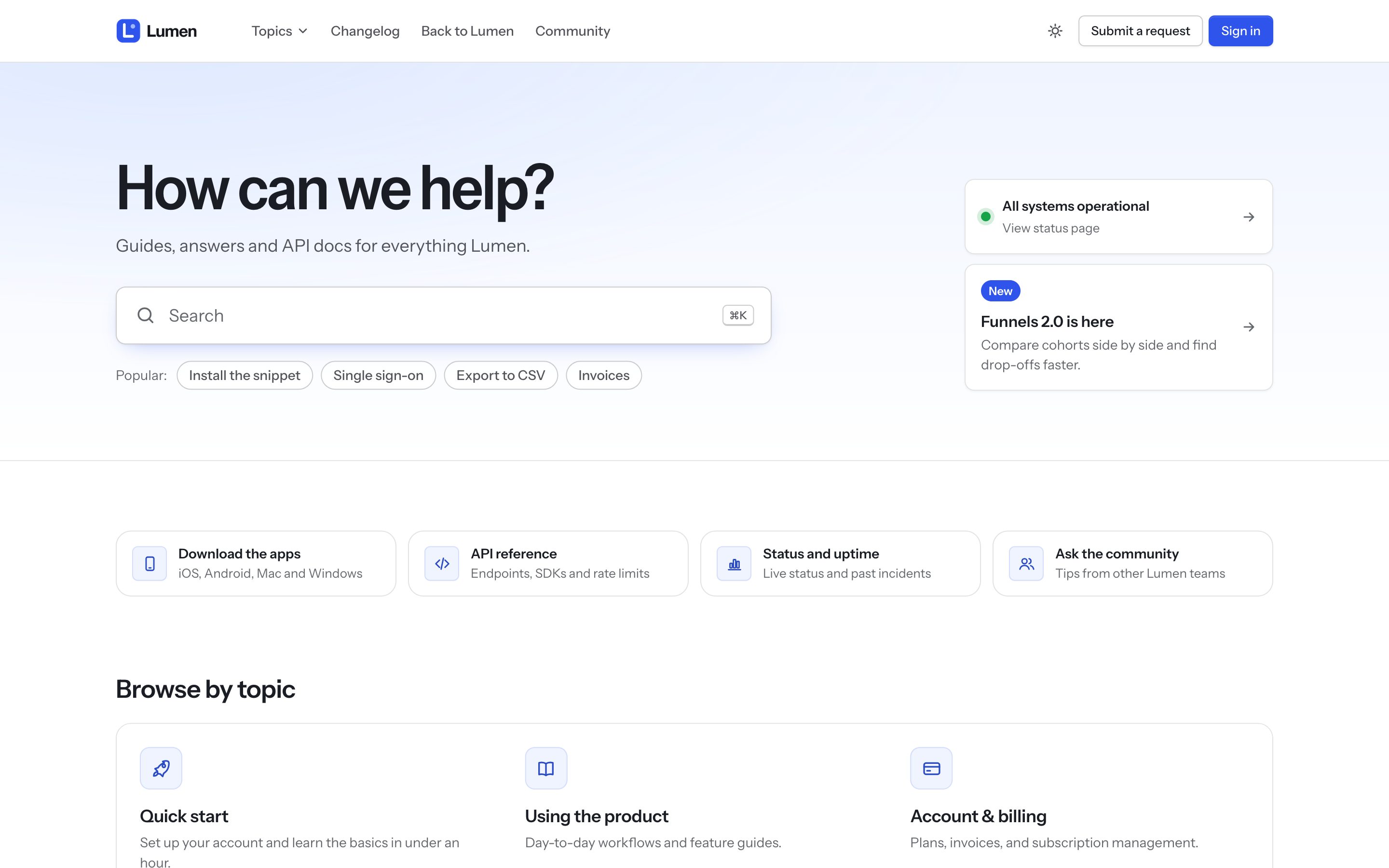
Quick search
On every page, visitors press Ctrl K (⌘ K on a Mac) or / to open a search box with instant results they can move through with the arrow keys. Turn it off with Search settingsQuick search. On the home page, the shortcut focuses the big search instead.
Topics
Zendesk categories are called topics on the page.
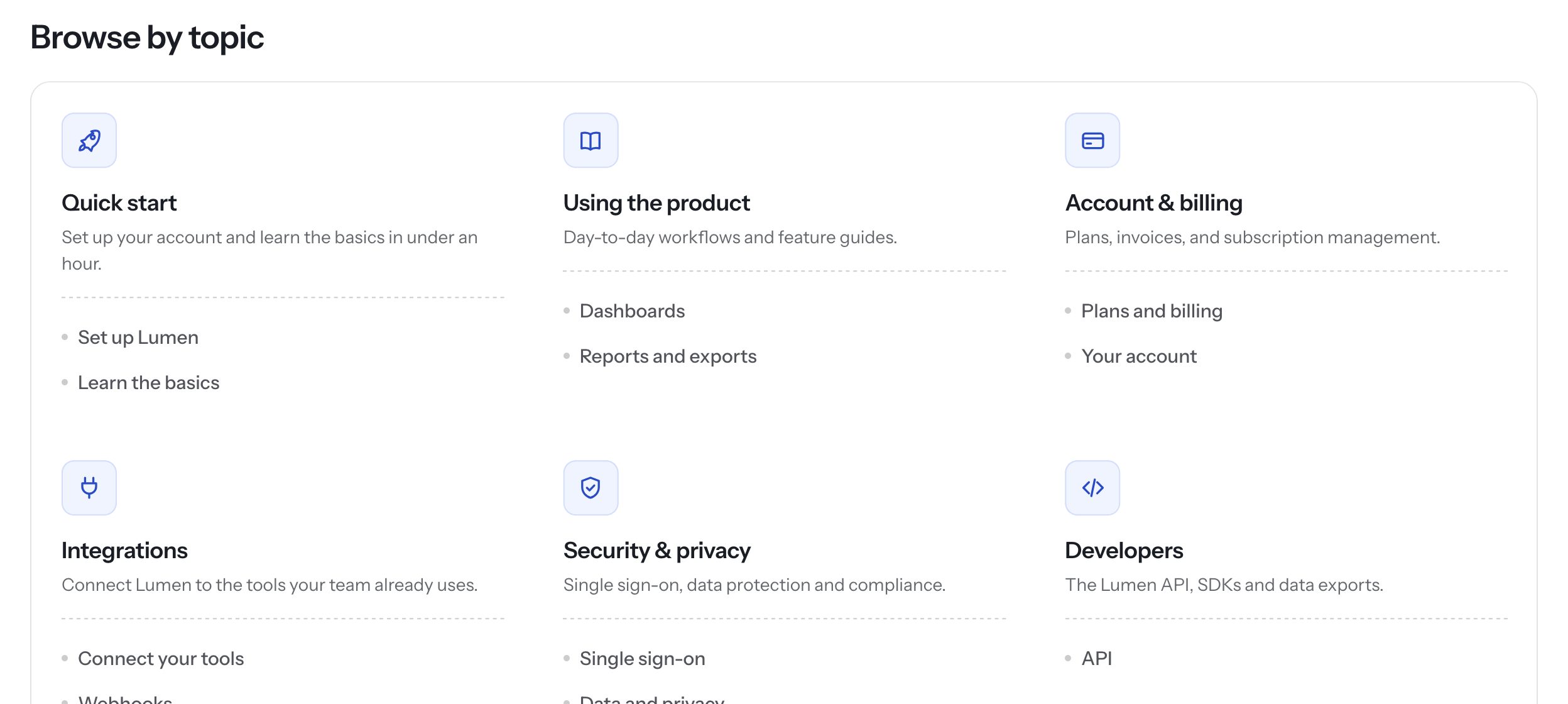
- Topics with their sections: a card per topic listing its first sections (Sections per topic, 0–8).
- Topic cards: one card per topic.
- Compact list: names only, for help centers with many topics.
Each topic gets an icon picked from its name (Billing gets a card, Security a shield, and so on). To choose one yourself, use Topic icons with topic:icon pairs, where topic is the topic's name or id and icon is an icon name or the URL of your own image:
Billing:card, Getting started:rocket, 360001234567:https://example.com/icon.svg
Icon names: rocket, book, card, user, users, shield, plug, code, chart, gear, wrench, bell, chat, globe, lock, mobile, video, spark, box, flag, folder. In a translated help center, icons follow each topic's name in its original language, so they stay the same in every language.
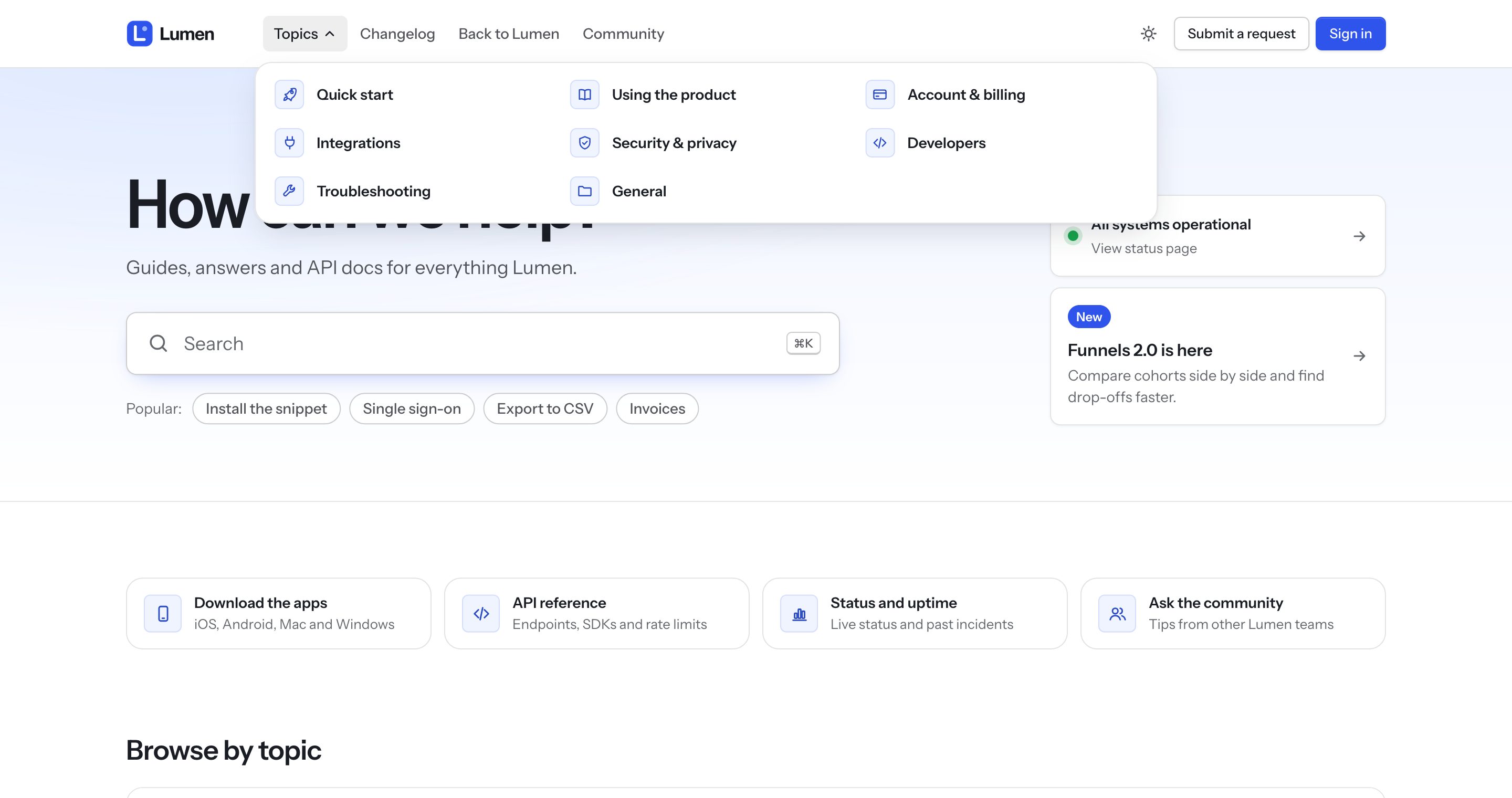
The Topics menu in the header lists every topic. With more than eight it switches to a compact three-column list that scrolls.
Quick links
Cards right under the search for the pages people need most: the app download, your API reference, billing. Set them in Home page blocksQuick links, one card per entry, entries separated by semicolons, each written Title|Text|Link|icon:
Download the apps|iOS, Android and desktop|https://example.com/download|mobile; API reference||https://example.com/api|code
The text and the icon are optional; without an icon, Northline picks one from the title. Quick links title adds a heading above them.

Banner
A call to action above the contact block, for a webinar, a launch or a survey: Home page blocksBanner, with a title, a line of text, a button label and a link. Banner style is a soft tint of your brand color, the solid brand color, or dark. Without a link the banner stays hidden.

Status, what's new, popular and recent
- HeaderStatus page: your Atlassian Statuspage address (for example
https://status.example.com). The home page shows the live status and links to the page. - What's new card: a title, a line and a link, for your latest release.
- Popular articles shows your promoted articles. Recent activity shows recently updated articles.
Videos and contact
- Videos on the home page: the first three videos from the video library. See Videos.
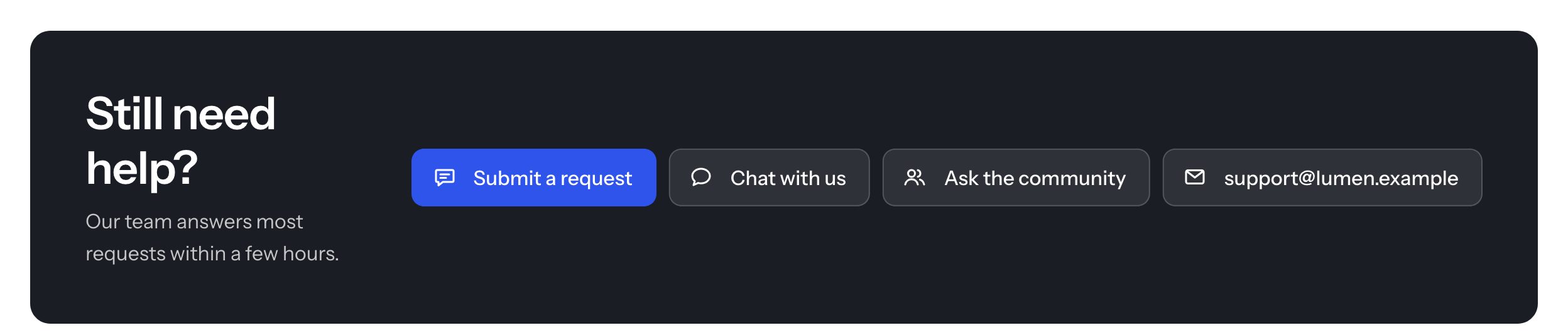
- Contact block: submit a request, chat (Chat option opens your Zendesk messaging or Web Widget), community and email (Support email).
Header
- Logo, the help center name (Show Help Center name), the Topics menu, two custom links (Header link 1/2), community, the light/dark switch, Submit a request and Sign in.
- Announcement bar: a message with an optional link. Visitors can close it; a new message shows again.
- On phones everything moves into a menu.
Footer
Three link columns (Column 1–3 title and links, written as Label|URL pairs separated by commas), a short text, social links and the language picker.