
Screendesk vs Birdie.so for customer support
Both help support teams collect customer recordings. Choose by the evidence you need, the helpdesk you use, and what happens after the recording arrives.
A comparison by Screendesk. Product sources reviewed on . Features and plans can change.
Choose the workflow your team will actually use
Evaluate Screendesk when…
You want customer recordings, reusable video explanations, and live calls in a broader support workflow. Start with your existing helpdesk and check the plan for every capability you intend to use.
A useful pilot follows one issue from the customer’s recording request through review, engineering handoff, and the explanation sent back to the customer.
Birdie may fit well when…
Your main task is collecting customer recordings and technical evidence for engineers or AI tools. Birdie also supports outgoing recordings and MCP, so neither capability should be treated as exclusive to Screendesk.
If that focused workflow already works for your team, switching needs a concrete benefit. Test the missing step before replacing an established tool.
Compare capabilities, including their conditions
This is a workflow comparison, not a scorecard. An unconfirmed Birdie capability means you should ask or test it, rather than assume it is absent.
| Your requirement | Screendesk | Birdie.so |
|---|---|---|
| Customer recording requests | Send a browser recording link from your helpdesk. Recording workflow. | Browser recording requests returned to the helpdesk. Birdie workflow. |
| Helpdesk fit | Zendesk, Intercom, and Help Scout, among other integrations. Help Scout chat requires the customer to paste the returned URL. | Birdie advertises integrations with Zendesk, Intercom, Help Scout, and other helpdesks. Check the exact ticket or chat workflow in its integration list. |
| Outgoing recordings | Record a walkthrough and reuse it through the video library. | Birdie supports team recordings, including recording modes with technical context. Recording options. |
| Console and network context | Requires the supported capture setup and an eligible plan. The current pricing table lists console and network logs on Enterprise. | Available through supported recording modes; the pricing page lists developer tools on Pro. Check capture requirements before a pilot. |
| Live help when a recording is not enough | Browser video calls and screen sharing are listed on Pro and Enterprise. | Confirm availability with Birdie if native live calls are a purchase requirement; the reviewed sources do not establish an equivalent workflow. |
| AI and MCP | MCP access and eligible recording analysis. AI Resolve is a separate Zendesk workflow; verify availability. | Birdie also advertises AI investigation and MCP/CLI access. Engineer and AI workflow. MCP alone is not a reason to switch. |
| Pricing model | Paid plans priced per agent, with billing and currency choices. Free includes 10 recordings/bug reports per month. Current plans. | Team-size pricing and billing choices. Free includes 10 customer recordings per month. Current plans. |
| Privacy and security | Review security, the DPA, retention, and plan controls against your requirements. | Review Birdie’s security information and Enterprise controls, including retention options, in its plan table. |
Test it in your helpdesk
Zendesk: send engineering evidence, not a vague ticket
Send a request from the ticket or a recording macro. Ask the customer to show the smallest sequence that triggers the issue. Review the submitted recording against the ticket, then attach a concise handoff with observed steps, expected behavior, and available environment details. Logs require supported setup and an eligible plan.
Start with the Zendesk screen recording workflow and the Zendesk macro setup guide. Verify ticket association with a test request before rolling a macro out to every agent.
Intercom: reproduce the issue in the conversation
Request evidence while the customer is already discussing the problem. Keep the recording beside the conversation so the next teammate can understand what was tried. Use a repeatable request in an appropriate workflow, then check the customer’s browser permissions and the returned video.
The Intercom integration page covers the customer recording flow. Test your own Messenger and workflow configuration rather than assuming every entry point behaves identically.
Help Scout: check email and chat separately
In Screendesk’s Help Scout email workflow, the submitted recording URL is added to the ticket. In chat, the customer needs to paste the URL into the conversation. Include that instruction in the request so your team can find the evidence.
Use the Help Scout workflow to evaluate both paths. A successful email test does not establish the chat handoff.
Watch the request, recording, and return
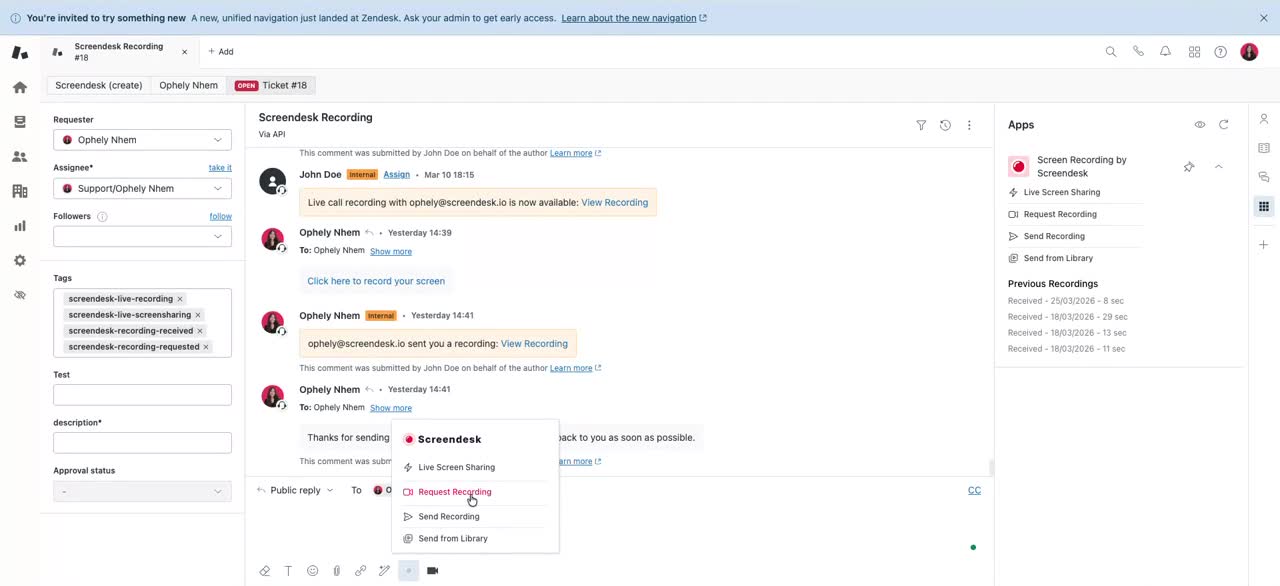
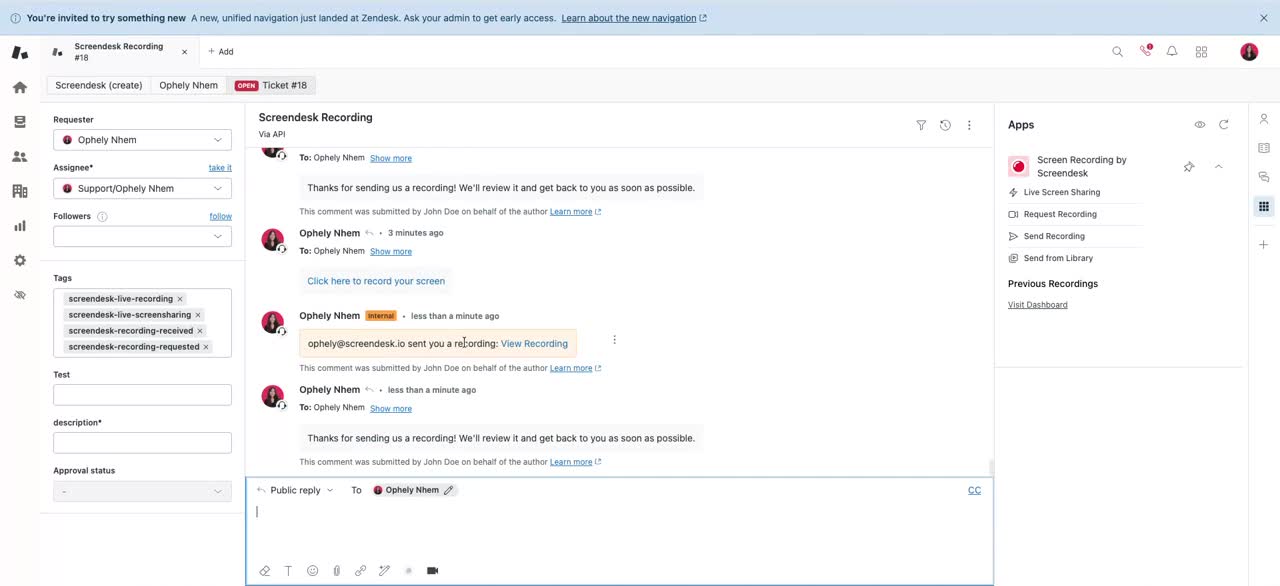
In this 90-second edit, Screendesk’s Ophely Nhem demonstrates a recording request on a Screendesk Zendesk test ticket, opens the customer recorder, submits a sample, and reviews the returned internal note. The sample records a public website; it does not demonstrate a real customer bug.
Read the text walkthrough
- 0:00 — Request. The agent selects Request Recording from the Screendesk app in the Zendesk ticket and inserts the link.
- 0:16 — Open. The customer request opens in a separate browser session.
- 0:36 — Capture. The customer starts recording and chooses what to share.
- 0:52 — Submit. The customer demonstrates a task, stops, reviews the sample, and submits it.
- 1:13 — Review. The agent opens the returned internal note and the recording associated with the test ticket.
Turn a recording into an engineering handoff
The following is a synthetic example you can adapt for a pilot. It illustrates the information to collect; it is not a customer result or a verified diagnosis.
Export CSV appears to do nothing
- Request
- “Please record the report page while you choose your date range and click Export CSV. Keep private customer data out of the recording.”
- Observed sequence
- Open Reports → choose a 180-day range → click Export CSV → see a generic error and no file download.
- Expected behavior
- A file downloads, or the interface explains that the selected range is unsupported.
- Evidence to attach
- The recording URL and relevant timestamp; browser and OS; the selected range; and the failed request or console entry, only if the capture actually includes it.
- Hypothesis to investigate
- A range validation or backend failure. Engineering should reproduce it and inspect the returned evidence before assigning a cause.
Keep observations separate from hypotheses. A recording shows what happened on screen; a transcript or AI summary can help review it but should not replace checking the relevant moment. See our Jira bug report guide and bug report templates for the handoff format.
Compare the plan needed for your workflow
Compare Screendesk pricing with Birdie’s current pricing using your actual team size. Screendesk’s paid plans are per agent; Birdie uses support-team size. Billing period, currency, and feature requirements can change the result.
- Count the agents who need access and select the same billing period.
- Estimate customer and outgoing recording volume; check which allowance each plan counts.
- If engineering needs console and network evidence, confirm capture setup and the eligible tier. Screendesk currently lists these logs on Enterprise.
- Check live calls, reusable replies, transcripts, AI investigation, and integrations separately.
- Agree on retention, permissions, storage, and security requirements before comparing the total.
Both offer a free starting point with recording limits. A free video test can validate capture and handoff, but it does not establish that a paid technical-context feature is enabled.
A switching checklist that preserves your evidence
- Inventory request links. Find Birdie links in macros, saved replies, helpdesk apps, automations, and contact forms.
- Pilot a small set of test tickets. Try a browser issue, a customer on mobile, and your usual engineering escalation.
- Check the returned context. Confirm ticket association, permissions, video playback, and the technical evidence your plan enables.
- Keep historical recordings accessible. Check existing retention and export arrangements. Do not assume old URLs or recordings transfer automatically.
- Update requests after the pilot. Replace approved links and instructions, teach agents how to review evidence, and monitor the first customer submissions.
Use a success criterion your team can observe: the intended customer can submit a recording, the right agent can open it, and engineering can reproduce the issue from the handoff. Avoid defining success as a feature list or a promised reduction in resolution time.
Questions before you choose
Is Screendesk an alternative to Birdie.so?
Yes. Both serve support teams collecting customer screen recordings. Screendesk is worth evaluating when the same team also needs outgoing video replies, a reusable library, or live calls. Compare the whole workflow and the plan required for your evidence needs.
Do customers need to install anything?
A customer can open a Screendesk recording request in a supported desktop browser without creating an account or installing the Chrome extension. They choose what to share and submit the recording. Mobile requests use the phone camera; do not assume desktop-style mobile screen capture. Technical logs have additional setup and plan requirements.
Will a screen recording always include logs?
No. Capturing pixels from a shared screen does not grant access to every application’s console or network traffic. Confirm the supported capture configuration, the website being recorded, permissions, and the plan. Test a harmless browser issue and inspect the returned evidence before promising logs to engineering.
Which pricing model costs less?
There is no universal winner. Screendesk prices paid plans per agent; Birdie prices by support-team size. Compare the same team size, billing term, currency, recording allowance, technical context, AI features, retention, and security requirements using both current pricing pages.
Can we migrate our existing Birdie recordings?
Do not assume automatic import or that existing Birdie links will work in Screendesk. Keep access to your historical evidence, check your export and retention arrangements with Birdie, and pilot new Screendesk requests before changing customer-facing links.
Does this comparison cover the other products called Birdie?
No. This page compares the customer-support screen recording product at Birdie.so. It does not compare care management software, golf products, or other similarly named services.
Try the whole customer recording workflow
Connect your helpdesk, send a test request, and review the returned evidence. Bring your technical-context and privacy requirements to a demo if you need help choosing a plan.