
Every element below has a switch under Article page elements.
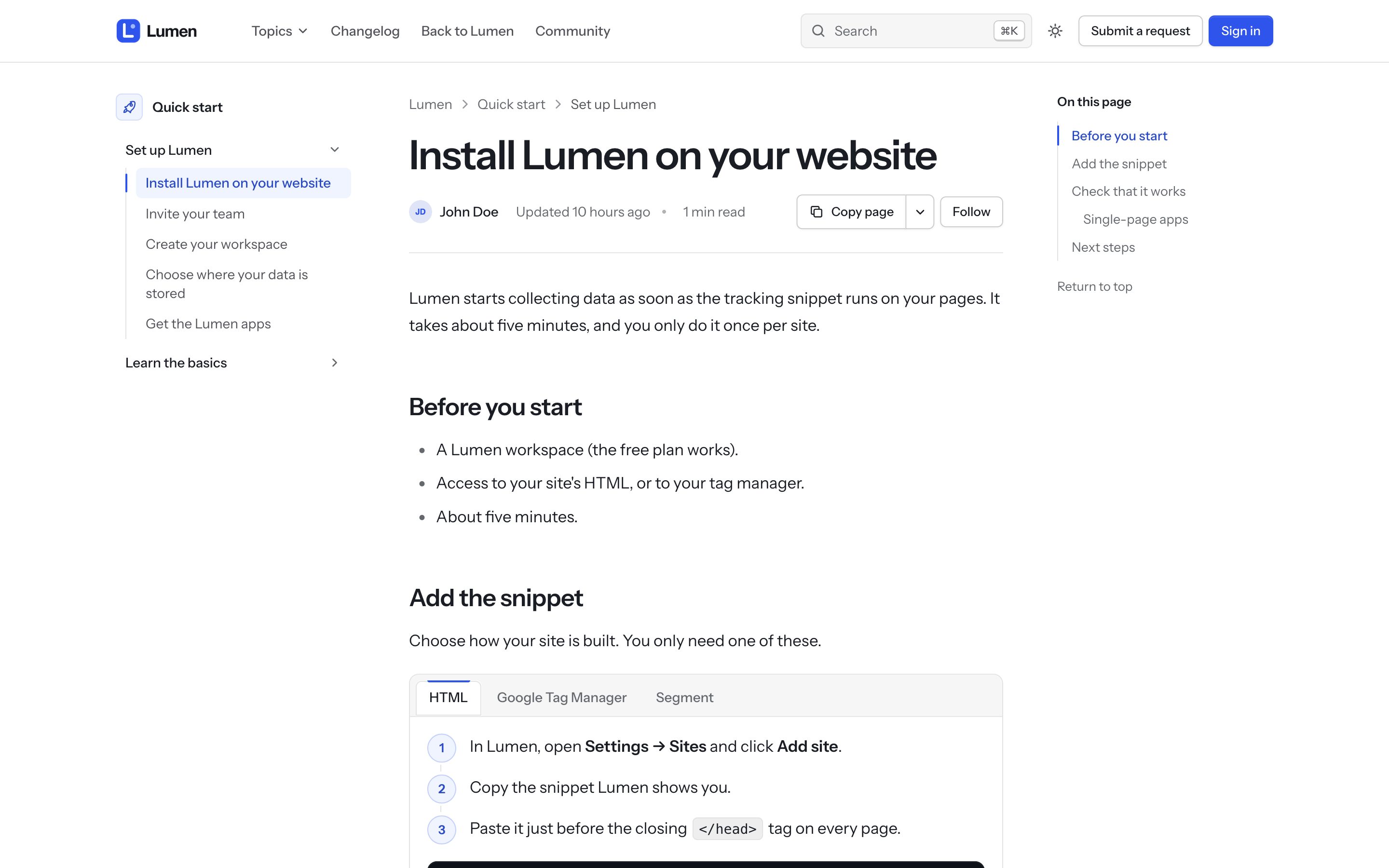
Navigation
- Topic navigation: a sidebar with every section and article of the current topic, the current article highlighted.
- On this page: the article's headings (
h2andh3), highlighted as the reader scrolls. Clicking a heading's link icon copies a link to it. - Previous and next: the articles before and after this one in its section.
Reading and sharing
- Reading time, Author and the last update date under the title.
- Copy buttons: a Copy page menu with Copy as Markdown (handy for pasting into an AI assistant) and Copy link. Print button adds a print layout that drops the navigation.
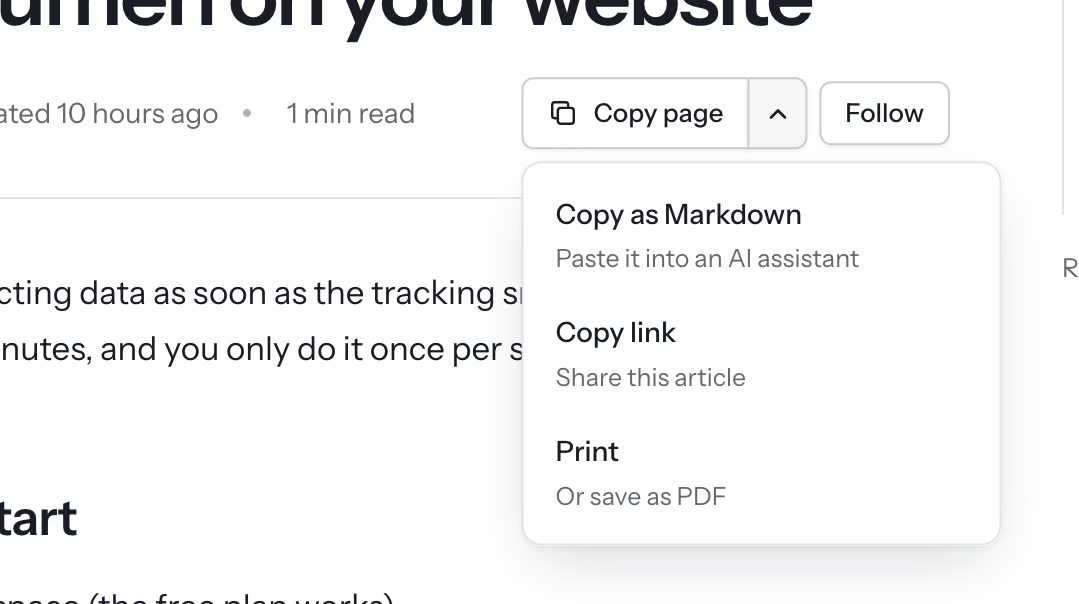
- Code copy button on every code block. Image zoom opens screenshots full screen when they're shown smaller than their real size.
- Was this article helpful? With Help after a No vote, a No offers to submit a request.
- Related articles, recently viewed, follow, social sharing and comments, each with its own switch.
Content that doesn't fit
Long URLs, long product names, wide tables and long lines of code stay inside the page on every screen size: words break only when they must, tables and code scroll inside their frame. Text pasted from Word or Google Docs keeps its bold and colors but takes your theme's font.
To format articles with steps, callouts, tabs, carousels and more, see Content blocks.