
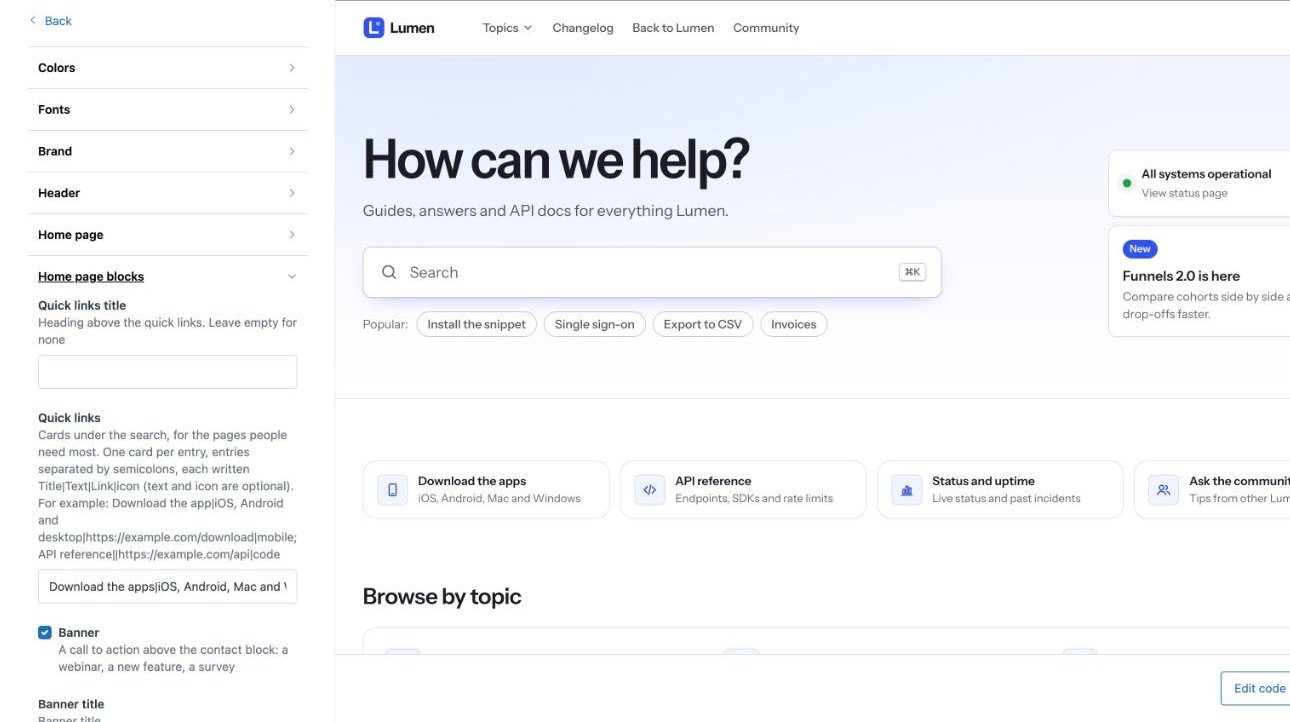
Open Knowledge adminCustomize designNorthlineCustomize. Every change previews on the right before you publish it.
1. Brand
- BrandLogo: your logo, ideally an SVG or a PNG about 64px tall. Add Logo for dark mode if your logo is dark.
- ColorsBrand color: your main color. Buttons, links, highlights and the home page tint follow it, and Northline keeps text readable on it in light and dark mode.
- Fonts: pick a heading and a text font, System to load no web font at all, or Custom font for your own (see Fonts).
- FontsCorners: sharp, soft or round.
- ColorsColor mode: light, dark, or the visitor's device setting. Visitors can switch with ColorsLight/dark switch.
2. Home page
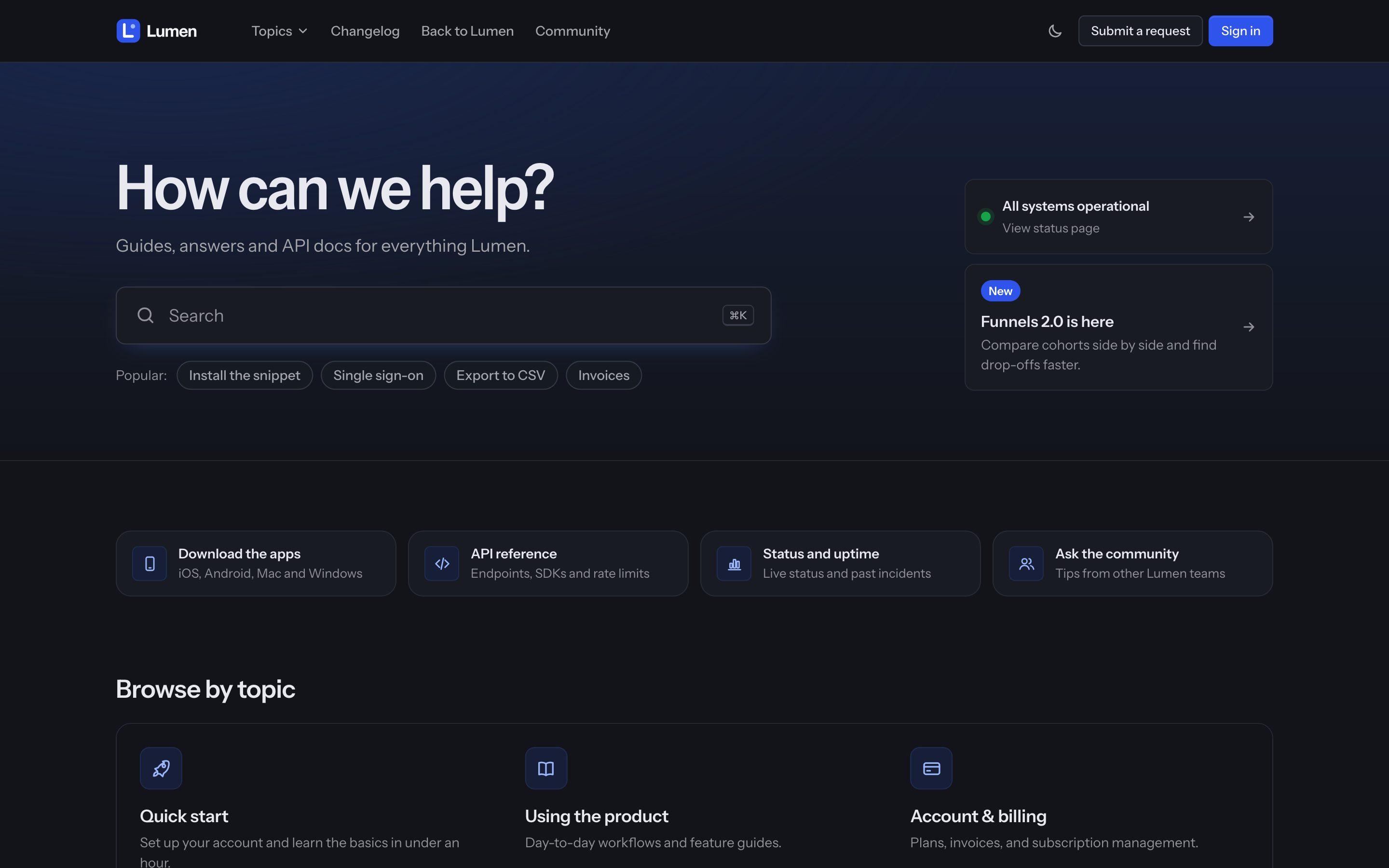
- Home pageHeadline and Subtitle.
- Home pagePopular searches: three or four things people look for, comma-separated.
- Home pageTopics layout: topics with their sections (good up to about 12 topics), topic cards, or a compact list for large help centers.
- HeaderStatus page: your Atlassian Statuspage address shows a live status card next to the search.
- Home page blocksQuick links and Banner: shortcut cards under the search and a call to action. See Home page.

3. Header and footer
- HeaderHeader link 1/2: for example Changelog and Back to the app.
- HeaderAnnouncement bar: a one-line message visitors can close.
- FooterColumn 1–3: links as
Label|URLpairs separated by commas, plus your social links.
4. Getting help
- Home pageContact block: request, chat (opens your Zendesk messaging) and community options.
- Request pageRequest types as cards: if you have several ticket forms, visitors pick one from cards instead of a dropdown. Add a line under each with Request type descriptions.
- Request pageScreen recording link: a Screendesk link so customers can record the problem instead of describing it.
5. Publish
Click Publish. If Northline isn't live yet, set it as the live theme from the theme library.
The settings reference lists everything else.