
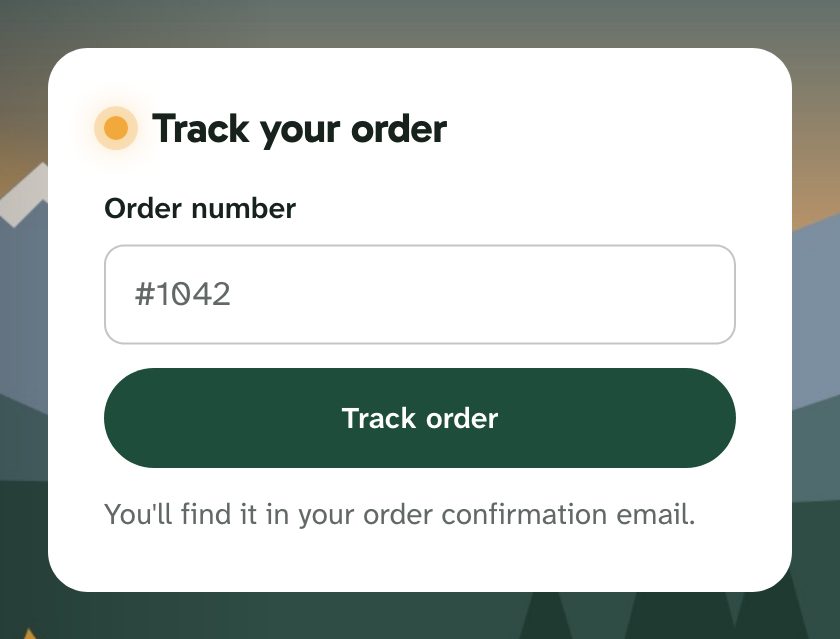
The Track your order card sits on the home picture. A shopper types an order number and clicks Track order. What happens next is up to you:
- With a tracking link, Porchlight opens your order status or tracking page for that order. Most "where is my order?" questions end there, without a ticket.
- Without a tracking link, Porchlight opens your order problem form with the order number already filled in, so every ticket arrives with it.
You can use both: a tracking link for the card, and the order form for Report a problem with an order and for the request form. The header's Track order link, the Still need help? card after articles and the not-found page all lead to the same card.
Option 1: a tracking link
Set Order trackingTracking link to the address of your order status or tracking page, with {order} where the order number goes. If the page also needs the shopper's email address, add {email}: the card then asks for the email too.
To find the address:
- Open your tracking page for a real order, the way a shopper would (from Shopify's order status, AfterShip, Narvar, Loop, ParcelPanel or your own store).
- Look at the address in your browser. Find the order number in it, and the email address if there is one.
- Replace the order number with
{order}and the email with{email}. Paste the result into Tracking link.
Examples of what the result looks like (your tool's address will differ):
https://shop.example.com/apps/track?order={order}&email={email}
https://track.example.com/orders/{order}
https://example.com/pages/tracking?order_number={order}&email={email}
Good to know:
- The link must start with
https://(orhttp://). Otherwise Porchlight ignores it and uses the order form. - A leading
#is removed before the number goes into the link, so#1042and1042both work. - The page opens in the same tab. Shoppers come back with the browser's Back button.
- Porchlight doesn't check the order number. Your tracking page does that and shows its own message for a number it doesn't know.
Option 2: the order form, with the number filled in
Without a tracking link, the card opens a ticket form of your choice with the order number already in its field. You need an order number field and a form for order problems. You do this once, in Admin Center.
1. Create the order number field
- In Admin CenterObjects and rulesTicketsFields, click Add field.
- Choose Text.
- Name it Order number.
- Under Permissions, choose Customers can edit, so shoppers see the field on the request form. Give it a title for customers, such as Order number. Make it required for customers if every request on that form is about an order.
- Save. Note the field's ID: it's in the fields list, and at the end of the page address when you open the field.
2. Create the order problem form
- In Admin CenterObjects and rulesTicketsForms, click Add form.
- Name it for shoppers, such as A problem with my order.
- Add the Order number field, plus anything else you need (a dropdown for Late, Damaged, Wrong item, Missing item, for example).
- Turn on Editable for end users, so shoppers can pick it on the request form.
- Save. Note the form's ID: it's at the end of the page address when you open the form.
3. Put both ids in Porchlight
In Customize designPorchlightCustomize:
- Order trackingOrder request form: the form's id, for example
360001234567. - Order trackingOrder number field: the field's id, for example
360007654321. - Order trackingOrder number hint: the help shown under the field. The default is You'll find it in your order confirmation email. Leave it empty to hide it.
Publish, then try it: type an order number in the card and click Track order. The order form opens with the number in its field.
What changes on the request form
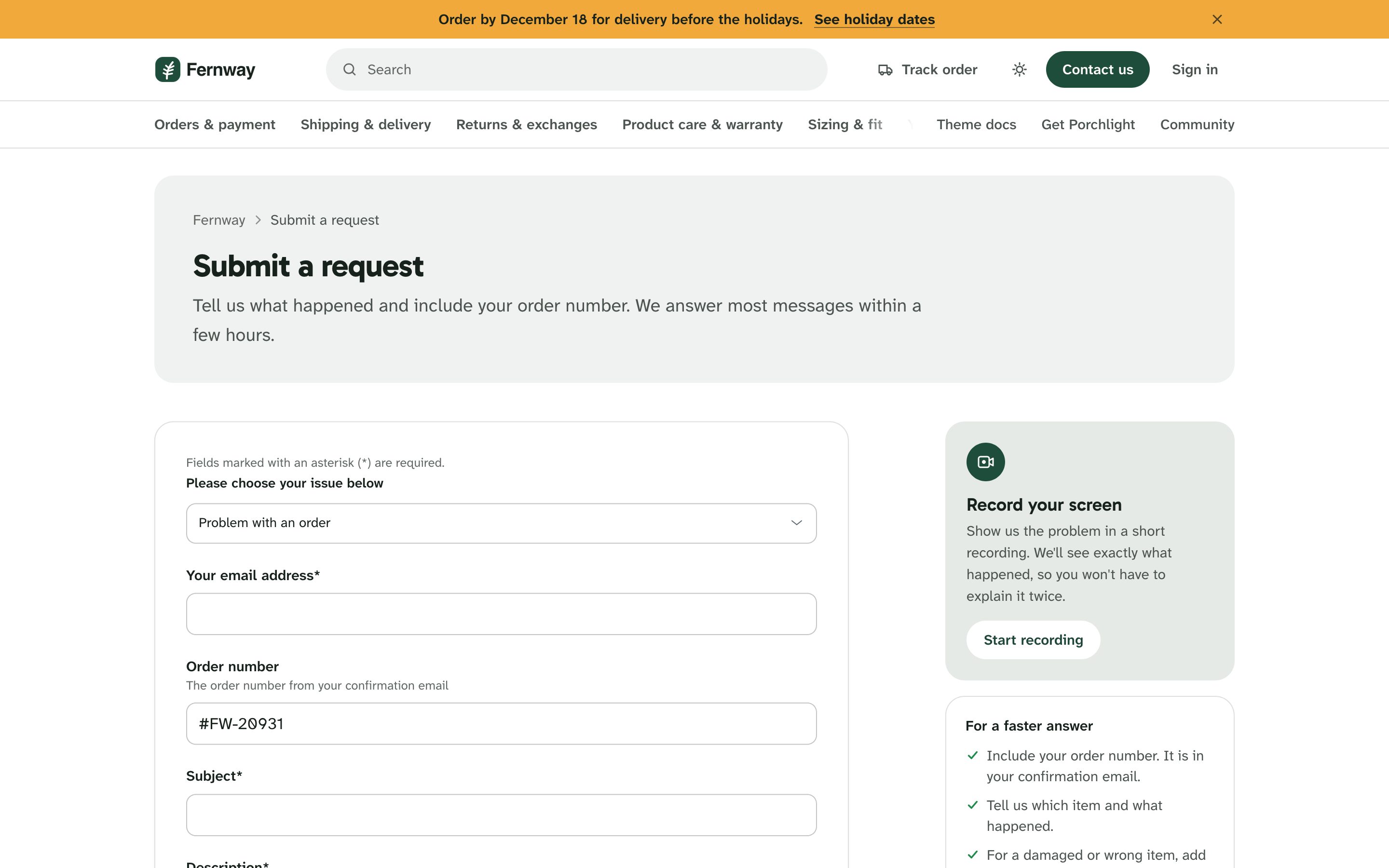
With Order number field set:
- The order number field moves to the top of every form that has it, so it's the first thing shoppers fill in.
- It's filled with the number the shopper typed in the card. Porchlight keeps that number for the visit, so it's there even if the shopper opens the form later from Contact us.
- The Order number hint shows under the field, unless you gave the field a description of your own in Admin Center.
With Order request form set:
- Report a problem with an order (Request 4 in Common requests) opens that form when its link is empty.
- On that form, the attachments area asks for photos: Add photos of the item and its packaging. It helps us sort it out in one reply. This shows unless your attachments field already has a description.
Questions
The card opens the request form, but the number isn't filled in
Check that Order number field is the field's id (digits only) and that the field is on the form that opens. The field must be editable by customers: Zendesk only shows and fills fields customers can edit.
The card opens the default form, not my order form
Check Order request form: digits only, and the form must be Editable for end users and available on this brand.
I have several brands
Ticket form and field ids are the same across brands in one account, but each brand has its own Porchlight settings. Set the ids, or a tracking link, on each brand. See Several brands.
Can I hide the card?
Yes: turn off Home pageTrack your order card. The Track order links in the header, after articles and on the not-found page go with it. The order number field still moves to the top of the request form.