
Open Knowledge adminCustomize designPorchlightCustomize. Every change previews on the right before you publish it.
1. Brand
- BrandLogo: your store's logo, ideally an SVG or a PNG about 64px tall. Add Logo for dark mode if your logo is dark.
- ColorsBrand color: your main color. Buttons, links, the topics bar and the topic drawings follow it, and Porchlight keeps text readable on it in light and dark mode.
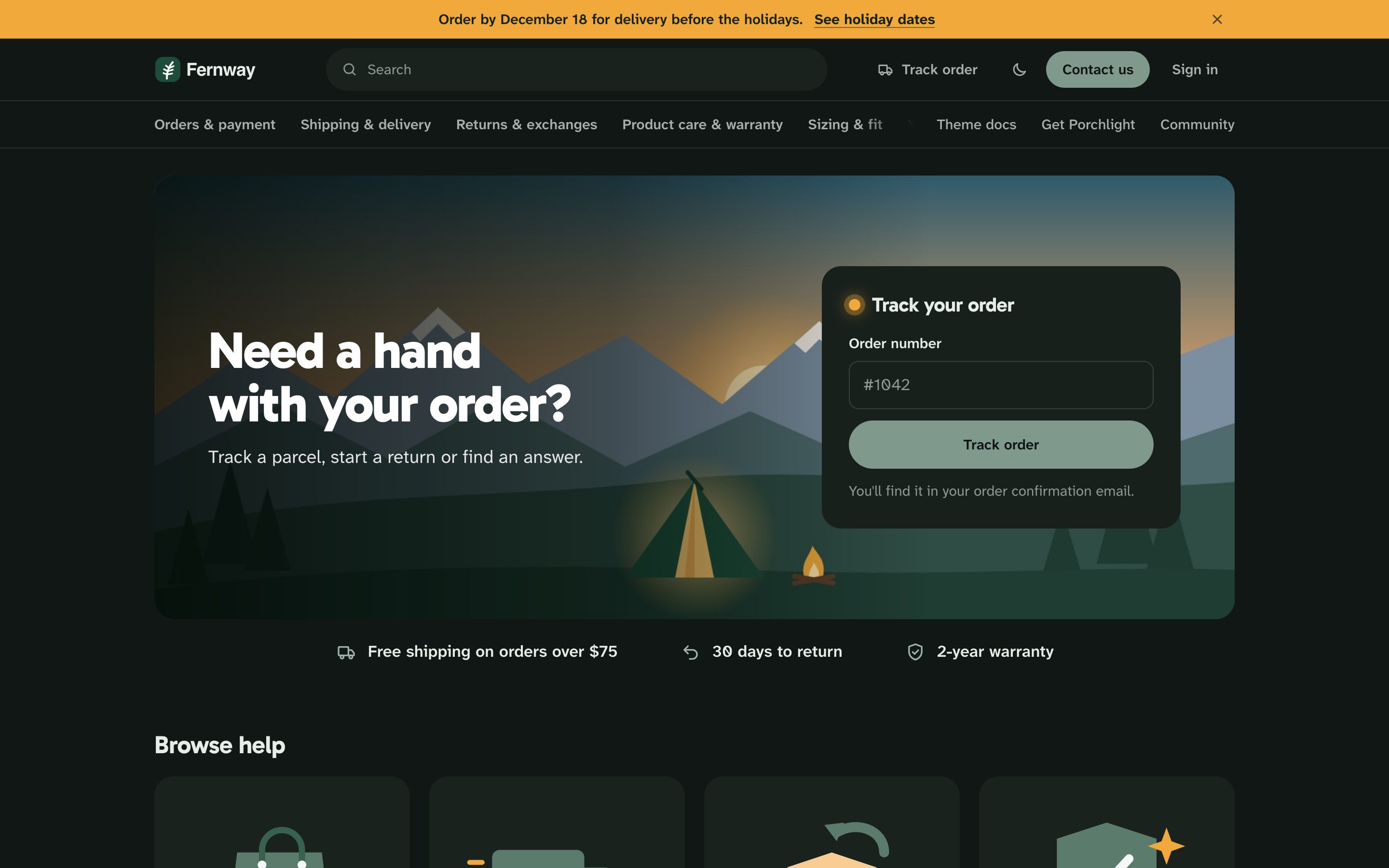
- ColorsHighlight color: the announcement bar and the small lamp next to Track your order and Open now. Keep it light enough for dark text on top.
- Fonts: pick a heading and a text font, System to load no web font at all, or Custom font for your store's own font (see Fonts).
- FontsCorners: sharp, soft or round.
- ColorsColor mode: light, dark, or the visitor's device setting. Visitors can switch with ColorsLight/dark switch.
2. The home picture
- ImagesHome hero image: a wide picture of your products or your store, about 2000px wide. The picture is cropped to fill the space, the headline sits on the left and the Track your order card on the right, so keep the subject near the middle. Porchlight lays a shade of your brand color under the headline, so any photo stays readable.
- Home pageHeadline and Subtitle: the words on the picture.
- Home pageStore promise 1–3: your shipping, returns and warranty terms, in a few words each. Porchlight picks an icon from the words.
3. Order tracking
This is the setting that cuts "where is my order?" tickets. Choose one:
- Order trackingTracking link: your order status or tracking page, with
{order}where the order number goes. The Track your order card opens it. - No tracking link: set Order request form and Order number field. The card opens your order problem form with the order number already filled in.
Order tracking walks through both, step by step.
4. Common requests
Home pageRequest 1–4 label and link: the four buttons under the topics. Point Request 1 link at your returns portal (Loop, Shopify's returns, or an article), and the others at articles or forms. A button without a link opens the request form.

Add Home pagePopular searches: three or four things shoppers type, comma-separated, such as Where is my order, Sizing, Gift cards.
5. Contact and hours
- ContactSupport hours, for example
Mon-Fri 9:00-18:00; Sat 10:00-14:00, and Time zone, for exampleAmerica/New_York. The contact block shows Open now or Closed now in your team's time. - ContactChat option opens your Zendesk messaging. Support email and Phone add those options.
- HeaderHeader link 1: for example Back to the store, with your shop's address.
- HeaderAnnouncement bar: shipping cut-offs, delays or a sale, in one line visitors can close.
- FooterColumn 1–3: links as
Label|URLpairs separated by commas, plus your social links.
6. Publish
Click Publish. If Porchlight isn't live yet, set it as the live theme from the theme library.
The settings reference lists everything else.